We should have a single Client name across all of our platforms – Stripe, Knowledge Base, inCytes, HubSpot, etc. That client name should be the legal name used by them on the Master Services Agreement.
1. We use the term Client, rather than Sponsor, for the individual or entity with financial responsibility for Products and Services Charges. Some Clients – e.g. Clients of investigator-initiated studies – explicitly do not want to be known as “Sponsors”, a term which carries for them dangerous legal implications.
2. Everyone should know what the legal name of a Client is, since the signed MSA should be uploaded to HubSpot under the relevant deal, for all to see.
3. All unnecessary attachments in HubSpot deals should be removed by the responsible salesperson or delegated account manager. Each Deal is an important source of truth. The important sources should always be present; the unnecessary ones discarded.
4. Sales staff doesn’t sell any prepaid cases or subscriptions. Thus, all Clients (sole practitioner and corporate) are susceptible to automated Stripe counting for cases and subscription months.
If any hours are sold, the MSA/SOW is added to the deal, and Finance is notified via email for an immediate invoice.
5. Account managers team doesn’t build any Circle(s) until Stripe registration for the Client is confirmed, and the Client is established on inCytes™.
6. The Client is immediately added to all new Circles (not RegenMed demo), and any new subscribers are assigned to that Client for funding.
7. RegenMed never creates test cases with Client-Funded Circles.
The Process of Assigning a Client to a Circle
Assigning the Client to the Circle is the critical moment in transferring the Circle/s to actual ‘production' mode. Once assigned to the Circle, the Client will be charged via Stripe for (1) all cases created and (2) all subscriptions assigned. Thus the consequence of the Client assignment must be observed.
ONBOARDING INDIVIDUALS
STEP 1: SALES DEPARTMENT
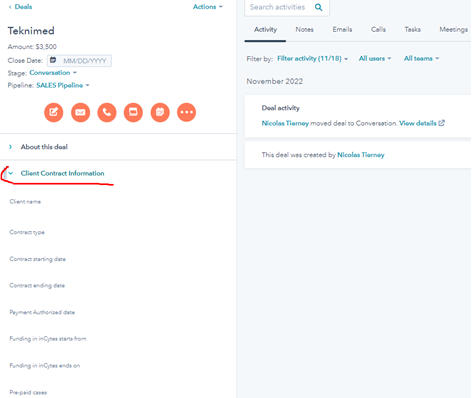
1. Fill in the following info directly in the Deal (Client Contract Information):
Notify the account managers - Cayla, Harini and Lana - in the comment in the Deal that the Client is set up in payment systems and invited to the platform
STEP 4: ACCOUNT MANAGER
If necessary:
Raise for the Content Team a Task in Hubspot including a description that is filled in based on the information provided in the respective Deal:
Invite email/s - what additional emails must be invited to the chosen Circle/s (if there are any)
Branding info to brand the Client’s account
STEP 5: CONTENT TEAM
Brand Client’s account
(Recommended but not obligatory step) Review the requested Client is properly configured in inCytes:
Link to the actual Client in Stripe exists
Client name is copied from the signed MSA
If there is no MSA for the Client, check that the Client name is the same as provided by the Sales/Account Manager
Send the responsible Account Manager the notification that everything is ready
ONBOARDING ENTITIES
STEP 1: SALES DEPARTMENT
After the signed MSA is uploaded to HubSpot under the relevant deal, fill in the following info directly in the Deal (Client Contract Information):
Client name (as indicated in the contract)
Contract type: Pay as You Go
Client Type(Individual / Entity)
Billing contact email
Billing address (Client’s physical address)
Recommended Circle Name (for invitation)
Invite email/s - what emails must be invited to the chosen Circle
Contract starting date (if known)
Contract ending date (if known)
Tag Beth, Cayla, Harini and Lana in Hubspot comment that the client must be set in Payment systems.
STEP 2: ACCOUNT MANAGER
Check that all the required information is provided by the Sales Department in the Deal
Leave the comment in the Deal if any required information was not provided.
STEP 3: FINANCE DEPARTMENT
Configure the Client with respecting the legal name of a client since the signed MSA:
Set up Client in QB
Set up Client in Stripe
Set up Funder for Client in inCytes
ADD FUNDER FOR CLIENT TO INCYTES, ADD CLIENT’S STRIPE ID BUT DO NOT ADD HIS SUBSCRIPTION ID
Form a manual invoice (with a pre-payment for the requested Circle) and submit it for payment based on SOW.
Once the payment is made and payment authorization granted, tag the account managers - Cayla, Harini and Lana - in the comment in the Deal to start content activities.
STEP 4: ACCOUNT MANAGER
Raise for the Content Team a Task in Hubspot, to start the formal process of building a Circle and Onboarding, including a description that is filled in based on the information provided in the respective Deal:
Leave the comment in the Deal if any required information was not provided
Client name (as indicated in the contract)
First name, last name, and email of the subscriber to be added to inCytes
Contract type: Prepaid/ Pay as You Go
Circles: list the Circles which must be built+the detailed structure of the Circle
Expiration Period for Circle subscriptions
Expected Subscribers to be funded /Team members
Expected cases usage
Contract starting date (if known)
Contract ending date (if known)
Funding in inCytes starts from
Funding in inCytes ends on
IF THE SUBSCRIPTION IS LIFETIME THE SUBSCRIPTION ENDING DATE IS SET AS 2050
Invite the Client to ALL requested Circles starting from the requested Funding starting date
Policy for Circle Check-Demo-Delivery
These simple steps will guarantee that any 'testing' cases created for the Circle were raised by the Client and must be charged for.
Prohibit cases creation in the ready-to-go Circle which is going to be delivered to the Client
Prohibit inviting any private emails to the ready-to-go Circle. The only email allowed as a Circle member is incytes@rgnmed.com
For reviewing purposes, the Content Team always creates the Test Circle which fully duplicates the Circle and the structure of the built Circle. We would recommend inviting the Sales representative/ Account manager directly into this Circle with their @rgnmed.com or any @gmail.com account which they use for wider access to inCytes. No limitations on case creation then.
The account incytes@rgnmed.com must be invited to the Circle only after the circle was delivered to the Client and purely for monitoring purposes.


.svg)