

+1 (332) 900-1500
In this article you will find:
Full raw Circle data export contains all the data collected by all Circle members within the Circle. Additionally, the report will contain the full list of questions and PROMs, which may be customized for each specific Circle member.
Circle Administrators have the ability to download the Circle’s full raw data report from the Circle Details Screen. This report contains all Circle data with no cohort division.
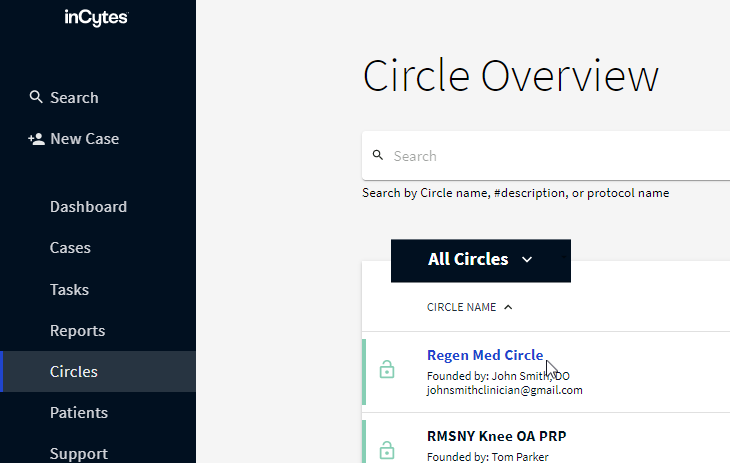
2. Click FULL RAW EXPORT at the top right of the Circle Overview Screen

Tip: Feel free to move to any other tab if required. When the report is ready, you’ll see a notification banner at the top of the page.

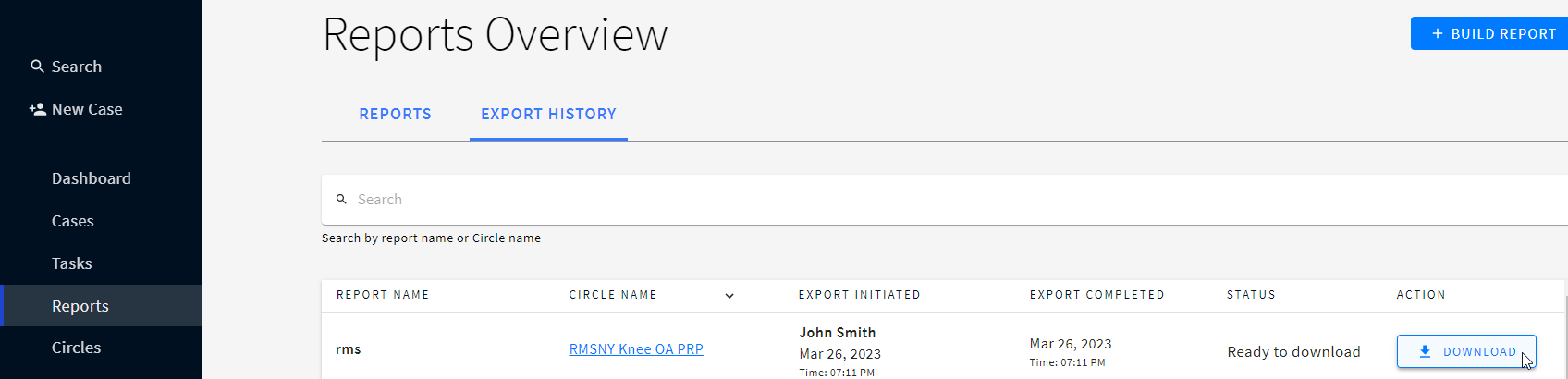
Clicking VIEW on the banner will take you directly to the EXPORT HISTORY tab where you can find your report at the top of the reports list and download it.
You can click CLOSE on the banner to close it and access your report later.
All the Report builder and Circle raw data exports are stored in the EXPORT HISTORY of the Reports tab.
There’s a table where you can find the details of your report:
Tip: Click the arrow near the required column to put the items in the ascending / descending order.
Initially, the sorting is applied only to the visible results (about 25 items). To see the whole list, scroll down the page in order to load the rest (missing) items and then sort them.

To download the existing report
Warning: To get the latest data in the report, re-export it on the Circle’s detail page.
Note: Use Search to find your report faster
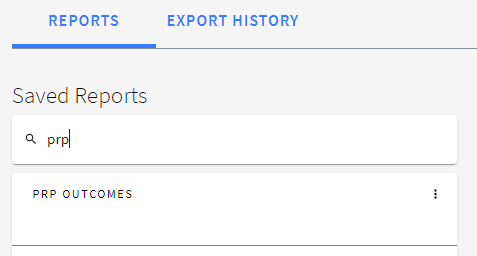
3. Click DOWNLOAD next to the required report to download it on your device in the .xlsx format
Caution: Reports Troubleshooting
• If the latest cases are not included in the report, re-export the report.
• If you don’t see PI data and/or the data of other Circle members in the report, your access to these data could have been limited. Contact your Circle administrator for more details.
• If you were granted access to the data, re-export the report to see the missing info.
• If the access to PI data was disabled, you won’t see the PI data when downloading the existing report.
Note: The data ownership level can be adjusted for Circle Admin and Circle members to make data visible/non-visible in the exported Excel report.
In the exported report you’ll find two tabs:

Case-related info:
Caution: *the visibility depends on the data ownership settings.
Survey-related info:

• By whom the survey was completed
• Survey language

• The answers to the survey questions (for “decoding” the keys refer to the Legend tab)
• The visibility depends on the data ownership settings

Example: S217QT1Q569, where
S217 - Survey title (“Demographic and Diagnostic Survey”),
QT1 - Single selection question
Q569 - question “Smoking status?”


Note: The questions in the legend go in the same order as in the protocol.

1. Key column presents the key of the question:
S - number of a Survey
QT - Question type number (the number is static):
QT1- Single Selection
QT2 - Multiple Selection
QT3- Group Question
QT5 - Text
QT6 - Number
QT7 - Date
QT9 - Analog
QT10 - Image
QT11- PDF
Q (Q- 962) - question number
2. Survey
name
3. Question type
4. Question
name
5. Additional Information
: indicates the units of measurements or the answer options to the questions used in scoring groups with the corresponding scorings for each option
Search keywords:
Tomorrow's Healthcare Decisions. Todays's Real World Evidence.
