

+1 (332) 900-1500
If you are using Google Chrome, Internet Explorer, Edge, or Mozilla Firefox you can quickly clear cache with a keyboard shortcut. While in your browser, press Ctrl + Shift + Delete simultaneously on the keyboard to open the appropriate window.
Warning: Close the browser and restart it after clearing the cache and cookies.

2. Select History

3. Select
Clear Browsing Data
from the left-hand side

4. Set the Time range to All Time and check the boxes Cookies and other site data and Cached images and files
5. Select Clear Data

1. Click on the Tools bar
2. Click on Options (On Mac, it's labeled Preferences)

3. On the menu to the left, select Privacy & Security
4. Under the Cookies and Site Data option, click Clear Data...

5. Select both options and click
Clear

6. To save your changes:
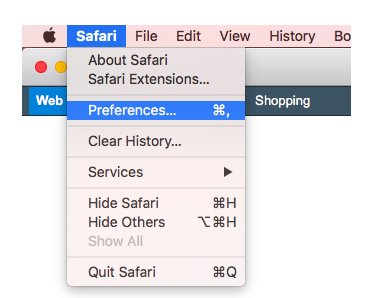
3. Click the Privacy tab
4. Click Manage Website Data...

5. Click Remove All
6. Click Remove Now

7. Go to the
Safari
menu on the top menu bar and select
Quit
to close Safari and save your changes

4. A pop-up will come up verifying that you want to clear the History and Data. Select Clear History and Data

5. The button for Clear History and Website Data will turn gray when cache and cookies have been successfully cleared

3. Select Settings

4. Select Privacy

5. Select Cookies, Site Data, and Cached Images and Files. At the top, set the Time Range set to All Time

6. Click Clear Browsing Data at the bottom of the screen
7. Then confirm by clicking Clear Browsing Data

1. On your Android phone or tablet, open the Chrome app

2. At the top right, tap More


3. Tap
History

Clear browsing data


4. At the top, choose a time range. To delete everything, select
All time
5. Check the boxes
Cookies and site data
and
Cached images and files
6. Tap
Clear data

Search keywords:
Tomorrow's Healthcare Decisions. Todays's Real World Evidence.
