

+1 (332) 900-1500
Benchmarc comprises three sections:
1. Header with navigation bar
2. My Updates field
3. My Case and Healthcare Team Information
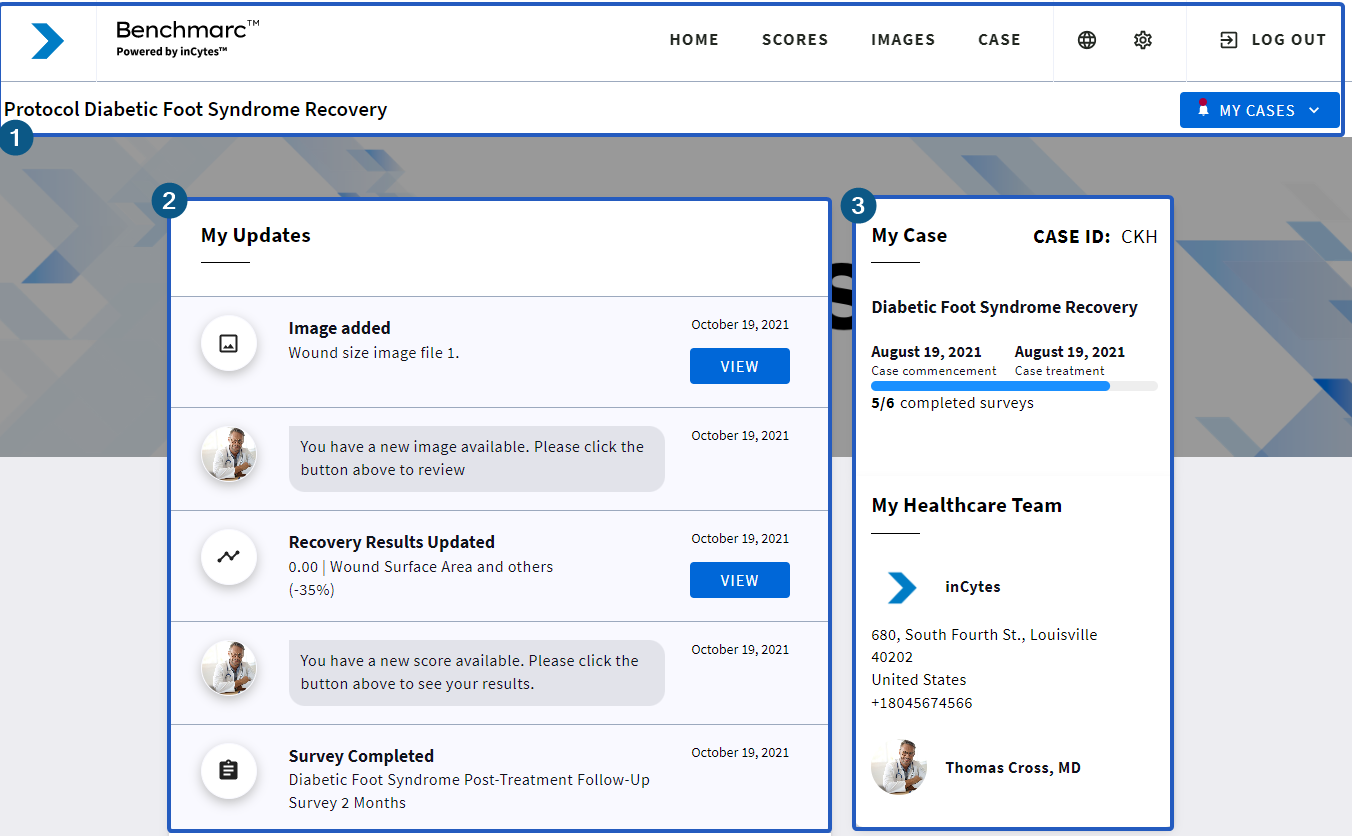

The header displays:
• Practice logo
• Navigation tabs: Home, Scores, Images, and Case
• Select Language icon:


• Log out button
• Protocol name
• MY CASES button which allows you to switch between multiple cases (if there are any).


You will automatically be directed to this tab upon signing in to Benchmarc.

In this tab you can view your recovery progress displayed on easy-to-read graphs.

Images tab contains images attached to the surveys either by you or by your clinician.

Navigate to this tab to read the information about the treated location and treatment used.
Where users can select the preferred language of the interface and communication


From this tab you can:
Warning: If you have a due survey/s, at the top of your Home page you will see a black banner displaying “You have an overdue survey [Survey name] to complete for [Protocol name], please complete”. Clicking on this button will guide you through a series of questions that will ask you for your symptoms and recovery progress. The survey should take you up to 5-10 minutes to complete. Having completed your survey, you will see your results displayed under the SCORES tab. On this very banner you can also click SKIP to postpone completing your due survey.

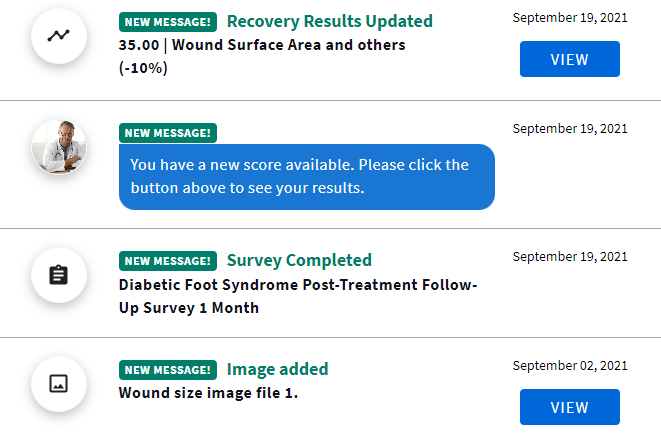
My Updates is your board for notifications about the case created/closed, due/overdue surveys you are to complete, new images/documents available or score updated.
The very first notification with the link to the consent signed falls on your board right after your registration. Clicking on the notification will open the details of the received update.
Note: You may not see all these options as the set of notifications is selected by your practice.
On the right of your Dashboard you can find your case information and contact information about your healthcare team.
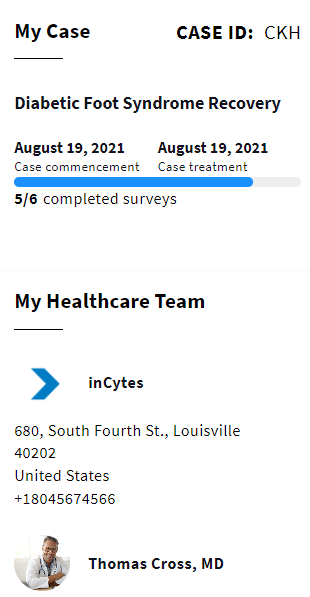
Includes the information about your doctor and the clinic where you receive your treatment.
Tomorrow's Healthcare Decisions. Todays's Real World Evidence.
