
InvestigatorAccount/Profile Settings
Customizing Profile
Updating your profile allows inCytes™ to personalize and brand your account.
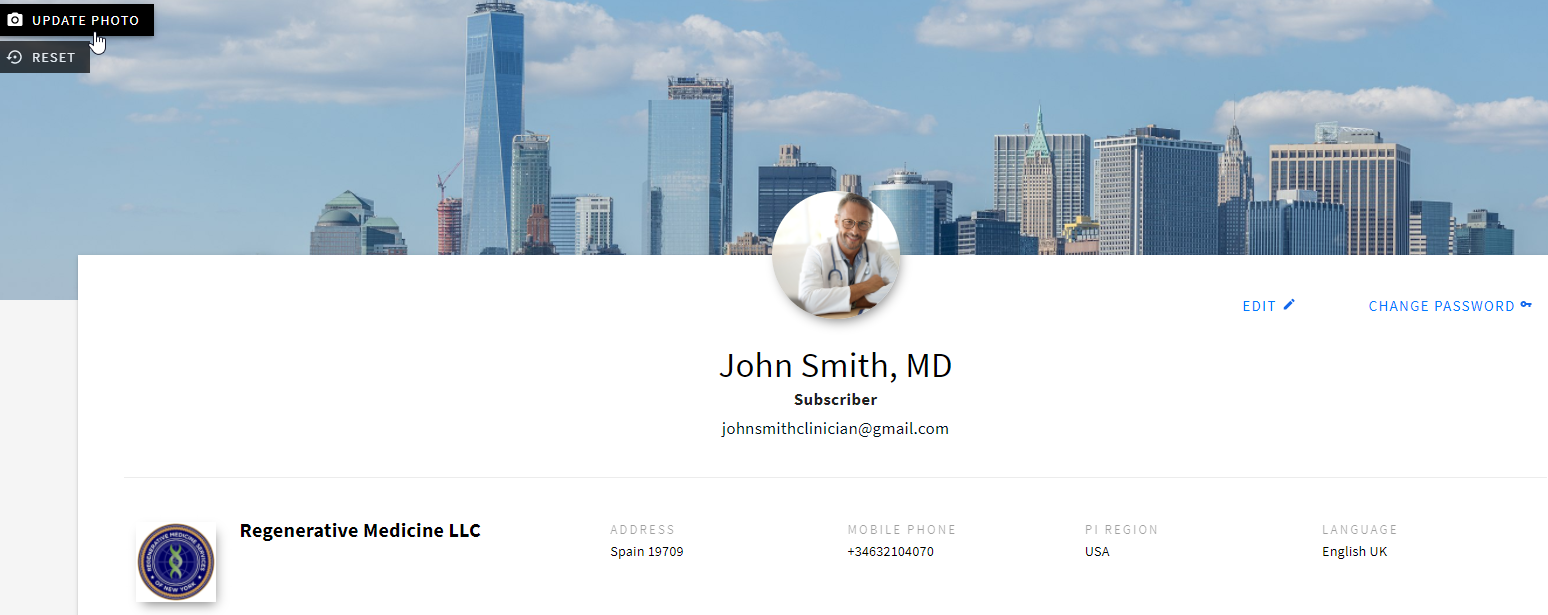
1. Access the Profile screen through the main navigation bar in the bottom left corner.
2. To upload/reset:
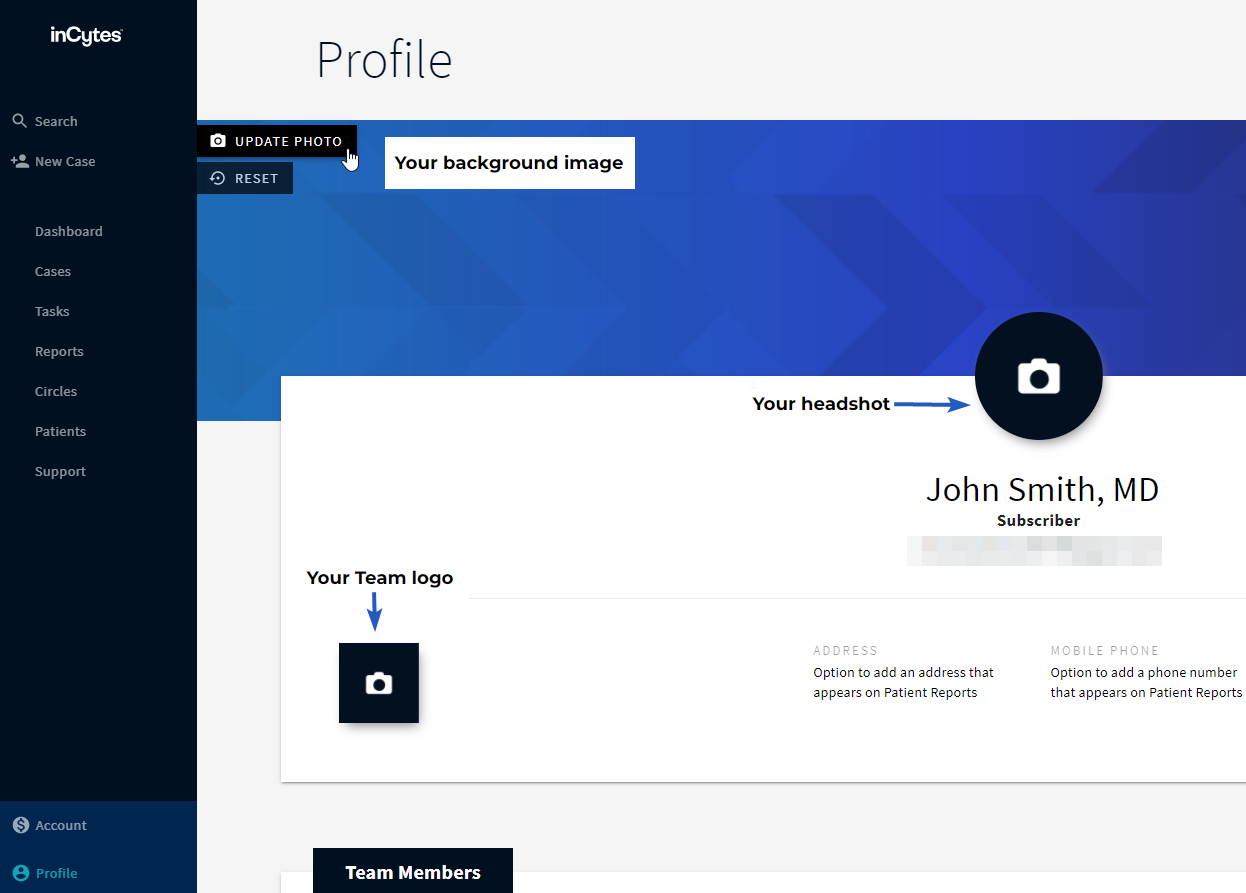
- Your Headshot
Note: Recommended file types: JPG, PNG, BMP. Recommended file size: larger than 174x174 px (aspect ratio 1:1)
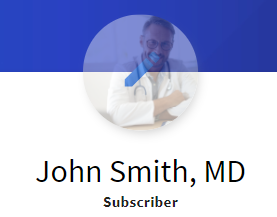
- Click on the circle or existing headshot image to upload a new file
- Select the preferred image from your device/computer and upload
- Your Team background image
Note: Recommended file types: JPG, PNG, BMP, recommended file size: 1704x306 px
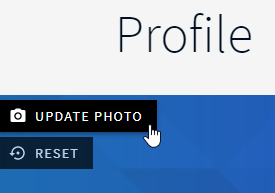
- Hover your mouse over the image at the top of the screen and click UPDATE PHOTO (or RESET to reset the image to default)
- Select the preferred image from your device/computer and upload
Your Team logo
Note: Recommended file types: JPG, PNG. Recommended file size: 100x100 px

- Click on the square, or existing logo, to upload a new file
- Select the preferred image from your device/computer and upload
3. Select EDIT to upload new personal details, including your name, title, preferred language of your app interface, and team information relative to your organization/institution. Press SAVE when complete.
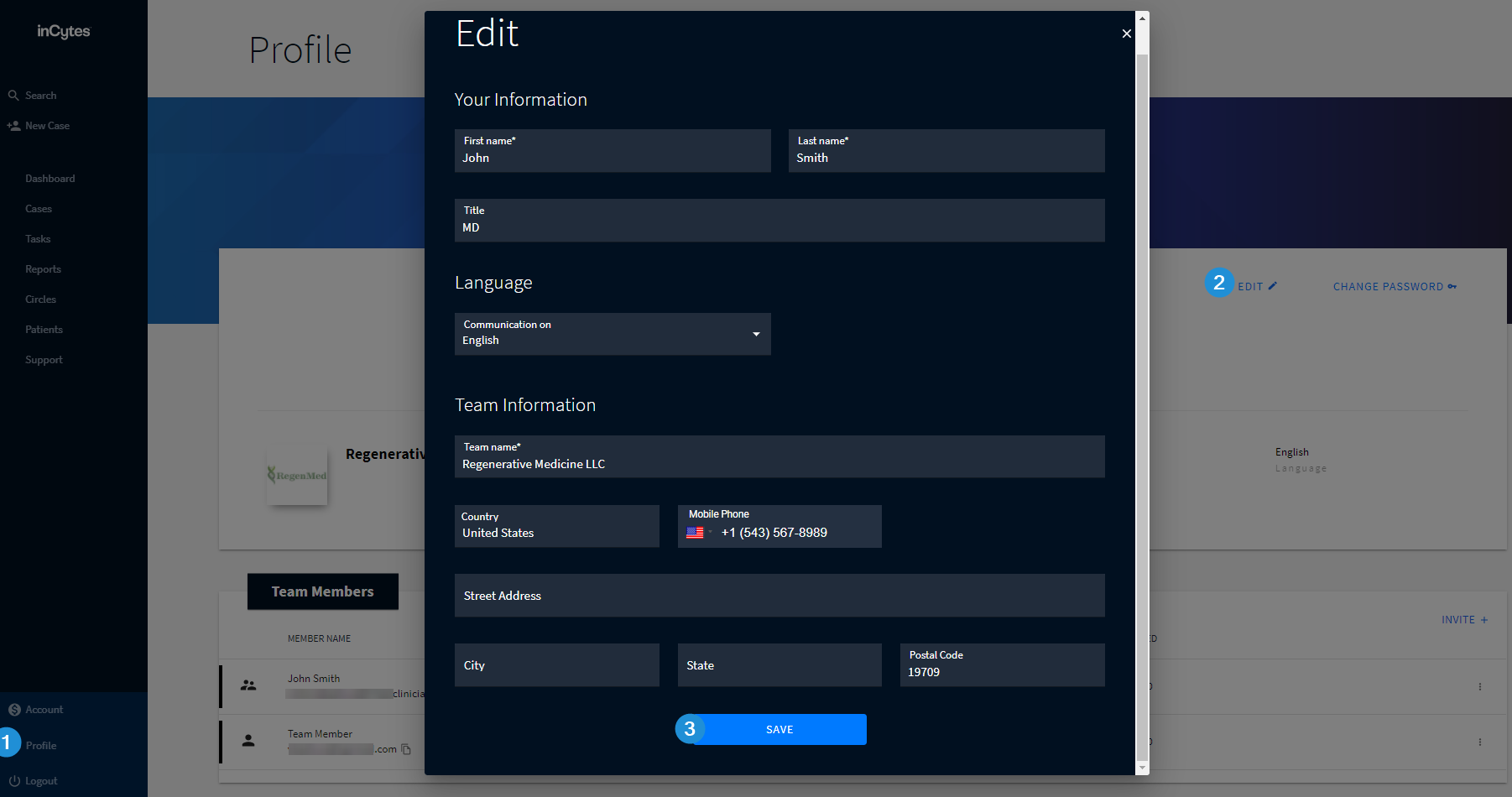
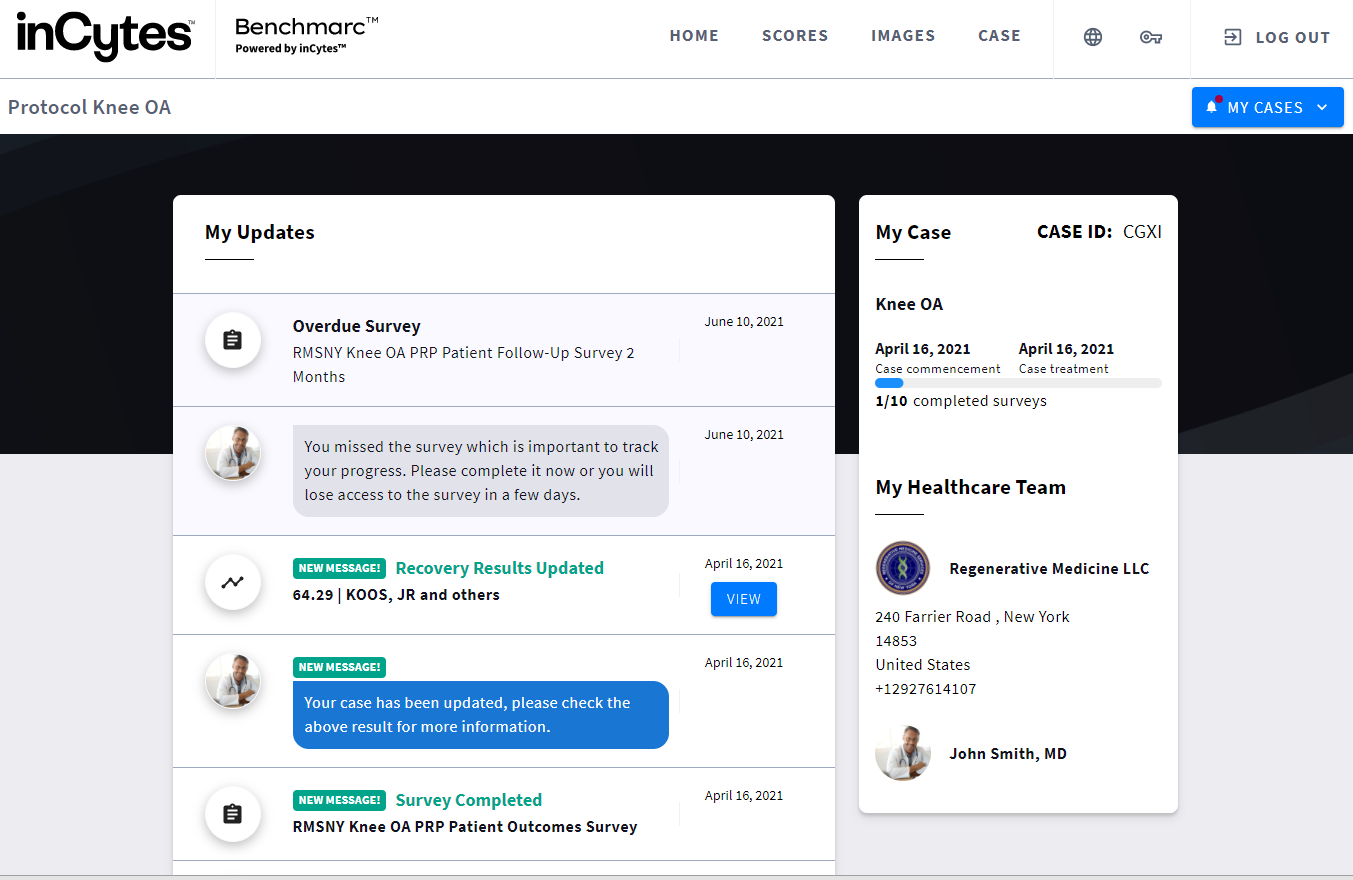
Note: Your personal and team information is extremely important to be filled in, as it will be displayed within the ‘My Healthcare Team’ section of Benchmarc™.
Did this article answer your question?
Related articles